
Installation and Setup
Welcome to P1 Fingerprint Browser. This guide helps you complete installation, initial setup, and basic usage as quickly as possible.
- Step 1: Confirm your computer meets the system requirements below.
- Step 2: Follow either the Windows or macOS installation steps based on your operating system.
- Step 3: After first launch, complete the initialization wizard, then continue with:
System Requirements
Minimum Requirements
- Operating system: Windows 10/11, macOS 10.14+, Ubuntu 18.04+
- Memory: 8 GB RAM, 16 GB or more recommended
- Storage: 2 GB available disk space
- Network: Stable internet connection
Recommended Configuration
- Operating system: Windows 11, macOS 12+, Ubuntu 20.04+
- Processor: Intel i5, AMD Ryzen 5, or better
- Memory: 16 GB RAM or more
- Storage: SSD with at least 10 GB available space
- Network: High-speed broadband connection
Download and Install
Windows
Download the installer
Visit the official download page: https://p1go.com/download/
Choose the Windows version
File name: p1-Browser-Setup-x64.exe
Installation steps
- Right-click the installer and choose Run as administrator
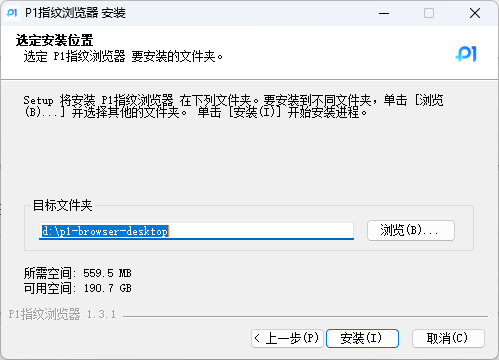
- Follow the setup wizard to complete installation
- Choose an installation directory, default is recommended
- Wait for installation to finish
First launch
- Double-click the desktop shortcut to start the application
- Complete the initialization steps
macOS
Download the installer
Visit the official download page: https://p1go.com/download/
Choose the macOS version
Downloaded file: p1-Browser-macOS.dmg
Installation steps
- Double-click the .dmg file
- Drag the app into the Applications folder
- On first launch, allow apps from unidentified developers if prompted
Permission fix
bash# If you hit a permission issue, run this in Terminal: sudo xattr -rd com.apple.quarantine /Applications/p1-Browser.app
Common Issues
Installation Problems
Q: Windows shows “Windows protected your PC”. A: Click More info, then Run anyway, or right-click and choose Run as administrator.
Q: macOS says the app cannot be opened because it is from an unidentified developer. A: Open System Settings -> Privacy & Security -> General, then choose Open Anyway.
Performance Issues
Q: Startup is slow. A:
- Close unnecessary background programs.
- Increase available system memory.
- Use an SSD.
- Reduce concurrent instances.
Q: Memory usage is too high. A:
- Reduce the number of running instances.
- Clear cache regularly.
- Adjust memory limits.
- Upgrade system memory.
Technical Support
If you run into issues during installation or setup, you can contact support here:
- Support email: p1https@gmail.com
- Telegram channel: @P1BROWSER
- Telegram support: @P1kefu
After the basic setup is complete, continue with Create Your First Browser.